How to Safely Open and Edit Your Wix Studio Site in Content Mode for Seamless Updates
Updated: Sep 1
The best way to keep your site looking great while making updates is to use Content Mode.
This guide will walk you through how to open and edit your Wix Studio site safely in Content Mode, explain why it matters, and help you avoid common pitfalls:
Table of Contents

What is Content Mode in Wix Studio?
Content Mode is a simplified editing environment designed specifically for Site Owners who need to update their website content with ease.
Unlike Full Mode, which exposes all the design layers, settings, and breakpoints, Content Mode acts like a sandbox where you can safely change text, images, and links without compromising the site design.
Think of Content Mode as a protected workspace. It lets you:
Manage site content without breaking layouts
Update Section Background colors or media
Update Titles and Paragraph text
Update Button text and links
Manage App & CMS Content
Update standalone images, video, galleries and vector art
Optimize basic settings for elements
Update alt text for images and buttons (for ADA Compliance)
Avoid accidentally moving or deleting design elements
Keep your site consistent across all devices
How to Find and Open Content Mode in Wix Studio
If a professional built your site in Wix Studio and transferred it to you correctly, then from your website Dashboard simply clicking "Edit Site" should by default open your Editor in Content Mode. However, if you designed your own site or perhaps another designer set it up differently, it's important to know the difference between these two modes and how to find them.
Here’s a step-by-step guide to help you open your site in Content Mode:
Log in to your Wix account and go to your Wix Studio dashboard.
Click Select Site on the website you want to edit.
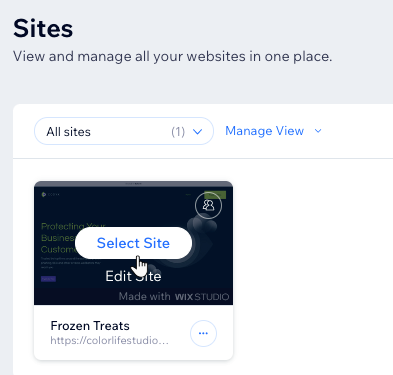
Next, in the top right corner find the big blue button that says "Edit Site". Click the Arrow next to Edit Site to see the 2 options.

Now, Click "Content Mode” (Default) to enter the safe editing environment

Note: If it does not say "(Default)" next to the Content Mode option, your site will by default open in Full Mode when you click "Edit Site" (instead of the Arrow). This may be because of how the designer handed it off to you; for example, if the site was originally built in your account, and not transferred from a Wix Partner and professional. All the more reason to know how to find and toggle between the two modes!
How Do I Know If I Opened the Site In Content Mode Correctly?
When you first open the editor in Content Mode on the far left you'll see a button that clearly says "Content Mode". Success!
To the far right you will see a white empty sidebar with the message "To make changes to the site content, choose a section on the page." Now you can have some fun!

Editing My Site In Content Mode
Your Content Editor features sections that can be highlighted for editing. These are the areas you can modify without altering the design. Start by hovering over each section on your page to begin editing.
Click on the area you wish to update. The sidebar on the right will refresh and display all the individual elements in this section that you can modify.

Now you can begin updating Title, paragraphs, images, and buttons! Keep scrolling down each page to find the correct section you wish to Update.
What Can I Edit in Content Mode?
Content Mode lets you update the parts of your site that matter most for day-to-day changes:
Text: Edit headlines, paragraphs, and button labels.
Images: Replace photos or graphics with new ones.
Media: Replace videos or mixed media in galleries
Links: Update URLs for buttons, menus, and clickable images.
Basic content blocks: Add or remove items from repeaters like testimonials or lists
You cannot move design elements, change layouts, or adjust advanced settings in Content Mode. This limitation protects your site’s look and functionality.
Navigating To Different Pages in Content Mode
To navigate between pages, you'll find a navigation bar in the top left of the screen with a menu dropdown. There is also a navigation bar top and center to toggle between different screen sizes: Desktop, Tablet and Mobile.

Checking Your Work on Desktop, Tablet and Mobile
Even in Content Mode, it’s important to preview your changes on different screen sizes. Wix Studio supports multiple breakpoints, meaning your site adapts to desktops, tablets, and phones. A change that looks perfect on a large screen might not work well on smaller devices.
After making updates:
Before you Publish updates, always click the preview icon in the top right of your Content Editor (next to the Publish button) to see how your site looks.

Click the Eye Icon to Enter Preview Mode, then Publish for your updates to go live In preview mode check how your changes looks on different devices.

Check that text fits well and images display correctly in each space.
Test links to ensure they work on all devices.
Click Edit Site to continue updating; or
Hit Publish for your changes to go live
If you notice issues, you can adjust your content or ask your designer for help.
Editing Your Website in Full Mode
What Does Full Mode Look Like?
When you access the Wix Studio Editor in Full Mode, you'll discover a wide range of additional options. You'll have access to advanced sizing, responsive behavior, specialized grids and layout containers, coding panels, advanced design tools, and much more.
Here you can click anywhere on the page and rearrange individual elements. However, this can trigger a chain reaction of changes that might not be immediately apparent.

If you accidentally open Full Mode, simply close it and return to the dashboard to select Content Mode instead.
Why Would I Want to Open the Wix Studio Editor in Full Mode?
Opening your site in Full Mode gives you access to every layer of your website’s design. While this might sound useful, it can lead to unintended consequences:
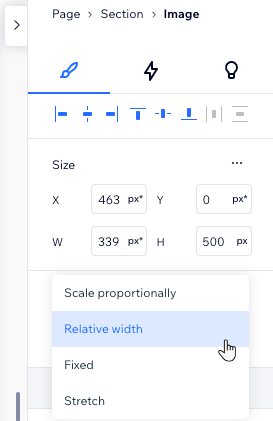
Design elements can be moved or deleted accidentally, causing layout issues.
Tricky layer across numerous breakpoints: Changes might look fine on desktop but break on tablets or certain mobile devices due to multiple breakpoints.
Delayed Updates: Fixing these issues often requires a designer’s expertise, which can delay your updates.
Requires Advanced Design & CSS Knowledge: It's easy to get overwhelmed by the complex interface, increasing the chance of errors.
It also gives you complete freedom! You can create new or redesign pages, sections, or refine the design of individual elements with options not available in Content Mode. You have access to advanced design and coding panels!
But with great freedom comes great responsibility...
Learning Wix Studio: Essential and Advanced Training
What If I Want to Master Editing My Site Design in the editor's Full Mode?
You will need to learn the basics of professional web design as well as advanced concepts like CSS Grid, Flexboxes, Breakpoints, as well as concepts like Fluid vs Fixed sizing, Cascading rules as well as UX and Accessibility best practices. It takes education, time and practice.
If that sounds exciting and not intimidating than you just might be a burgeoning web designer in the making!
Wix Studio Academy
The best place to start is by visiting the Wix Studio Academy which provides video tutorials, full courses and advanceds lessons on mastering Wix Studio. They also provide sandbox environments for you to safely test and play around with these new concepts: Wix Studio Academy: Learn the Wix Studio Way
I recommend starting with the Wix Studio Essentials Course.
I highly definitely recommend opening a test site before diving in further with your current website. You can explore Wix Studio's Template gallery to find a blank, wireframed or pre-designed template to open and edit to your heart's desire: Wix Studio Templates: Choose a Template and Start Creating.
Here is a nice intro from Wix on how to get started in the full Wix Studio Editor:
When you want to update your Wix Studio website, it’s tempting to jump straight into the full editor and start making changes. But opening your site in Full Mode can unintentionally disrupt your carefully designed layout and cause problems across different devices.
For the majority of website business owners, Content Mode offers a safer, simpler way to keep your site fresh and accurate.
Book a Wix Studio Training Session with an Expert
Book a follow up Zoom tutorial or demo with Ash Mera Studio
When to Contact Your Designer
Content Mode covers most routine updates, but some changes require professional help:
Adding new pages or sections
Changing the site's layout or design
Redesigning the layout of sections or updating functionality
Fixing broken elements caused by previous diy edits
Updating advanced features like animations or custom code
Your designer can safely open Full Mode and make these changes without risking your site’s integrity.
Tips for Smooth Content Updates
To make your editing experience easier and safer, remember:
Always open your site in Content Mode for updates.
Avoid clicking around in Full Mode unless you are a designer or have been trained on a test site first.
Click Preview before publishing your site changes.
Use clear, concise text to keep your site readable. If a space was originally designed with just a few words, then adding multiple sentences is possible but it may not look right or be readable for your website visitors.
Optimize images for web to keep your site fast.
If you’re unsure about a change, ask your designer for guidance.
Maintain Your Website Stress Free with Wix Studio's Content Mode
Keeping your Wix Studio site updated doesn’t have to be stressful or risky. By using Content Mode, you maintain control over your content while protecting the design work that makes your site stand out. Remember to always open your site in Content Mode, preview your changes on all devices, and reach out to your designer when you need help with bigger updates. This approach keeps your website looking professional and running smoothly for your visitors.
For more detailed information, you can visit the official Wix Studio support page here.
Ready to update your site safely? Log in to Wix Studio, open Content Mode, and start making your content shine worry-free!
Still Need Help or Further Training?
Book a follow up Zoom tutorial or demo with Ash Mera Studio
Comments